Try this in the studio
Made with this guide
A new clip generated from this guide's prompt, unedited.
Prompt
Phone-camera footage on a sunny city street: a quirky man in a mint-green suit, a perfect bowl haircut, huge round glasses and a thin curled moustache does a proud little dance for the camera while passers-by smile. Handheld, natural daylight, realistic skin, slightly overexposed like a real phone video.
Who is Jean-Phil?
Jean-Phil is an AI-generated character, not a real person. What makes him work is easy to copy as a method: the same look in every video (the same brown suit, the same bleached bob, the same curled moustache), a completely deadpan face whatever happens around him, and footage that looks like it was shot on a phone rather than rendered by a computer.
According to the video, the account blew up in about two weeks, with 35 million views and 200,000 followers. Those numbers are the video's own claims; we have not checked them.
KreatorFlow did not make Jean-Phil, does not own the character and has no connection with the account. This guide uses him as an example of a format that works. The point is to build your own character with the same ingredients, not to copy his.
Step 1: build the character with one prompt
Start in the image studio or in Characters with a single, detailed prompt. This is the prompt from the video's description. Copy it as it is to see how the pieces fit together, then change the details to make the character your own.
Character prompt (from the video)
Full-body photo of a stocky man in his 40s standing square to camera, neutral deadpan expression, arms at his sides. Chin-length straight bleached-blond bob with a blunt fringe, waxed curled moustache, brown houndstooth three-piece suit, white shirt, dark tie, polished brown shoes. Plain light-grey studio background, soft even lighting, shot on a phone camera, natural skin texture, no retouching. Vertical 9:16.
- A distinctive silhouette: "stocky man in his 40s standing square to camera, arms at his sides" gives a shape people recognise before they see the face.
- A haircut nobody forgets: "chin-length straight bleached-blond bob with a blunt fringe" plus a "waxed curled moustache" is a signature on its own.
- One outfit, always: a "brown houndstooth three-piece suit" with a white shirt, dark tie and brown shoes. Wearing the same thing in every video is what turns a face into a character.
- A deadpan expression: "neutral deadpan expression" is the joke. The calmer the face, the funnier any situation around it.
- Phone-camera realism: "shot on a phone camera, natural skin texture, no retouching" keeps it from looking like a glossy AI render.
- A plain background and even light: a clean reference that drops into any scene later.
- Vertical 9:16: framed for Reels, TikTok and Shorts from the start.
Why it has to look like phone footage
Viewers scroll past anything that looks like an ad or a render. A character that looks like it was filmed on someone's phone, with ordinary light, real skin texture and slightly imperfect framing, reads as a person in a video, so people stop and watch to the end.
That is why the prompt asks for a phone camera and no retouching, and why the motion clips work best when they are ordinary handheld or tripod phone footage. Keep the same treatment in every clip: once the audience knows the look, any glossy shot breaks it.
Realistic does not mean deceptive. TikTok, Instagram and YouTube ask creators to label realistic AI-generated content, so use the platform's AI label when you post.
No prompt? Start from a reference of your own character
You do not need to rewrite the prompt for every clip. Generate your character once, save it as a KreatorFlow character, and from then on that saved character is the reference: call it by its @handle in the image and video studios, or pick it as the character in Kitsune.
Kitsune takes 1 to 8 images of the same character per job (JPG, PNG or WebP). Front, side and full-body views of your own character help it hold the face, hair and outfit from every angle.
Make your own character, not a clone
Use Jean-Phil as inspiration for the format, not as a template to copy. Do not screenshot or upload another creator's character, and do not use a real person's face or likeness unless it is yours or you have their permission. A character that is recognisably someone else's can infringe their rights and breaks our acceptable use policy.
Kitsune checks for this too: it warns you before you generate when a character image looks like a well-known film, TV or game character, and the model's own copyright check stops results that do (your credits are refunded). An original character avoids both problems, and it is the only one you can build an audience on.
Step 2: put your character in motion with Kitsune
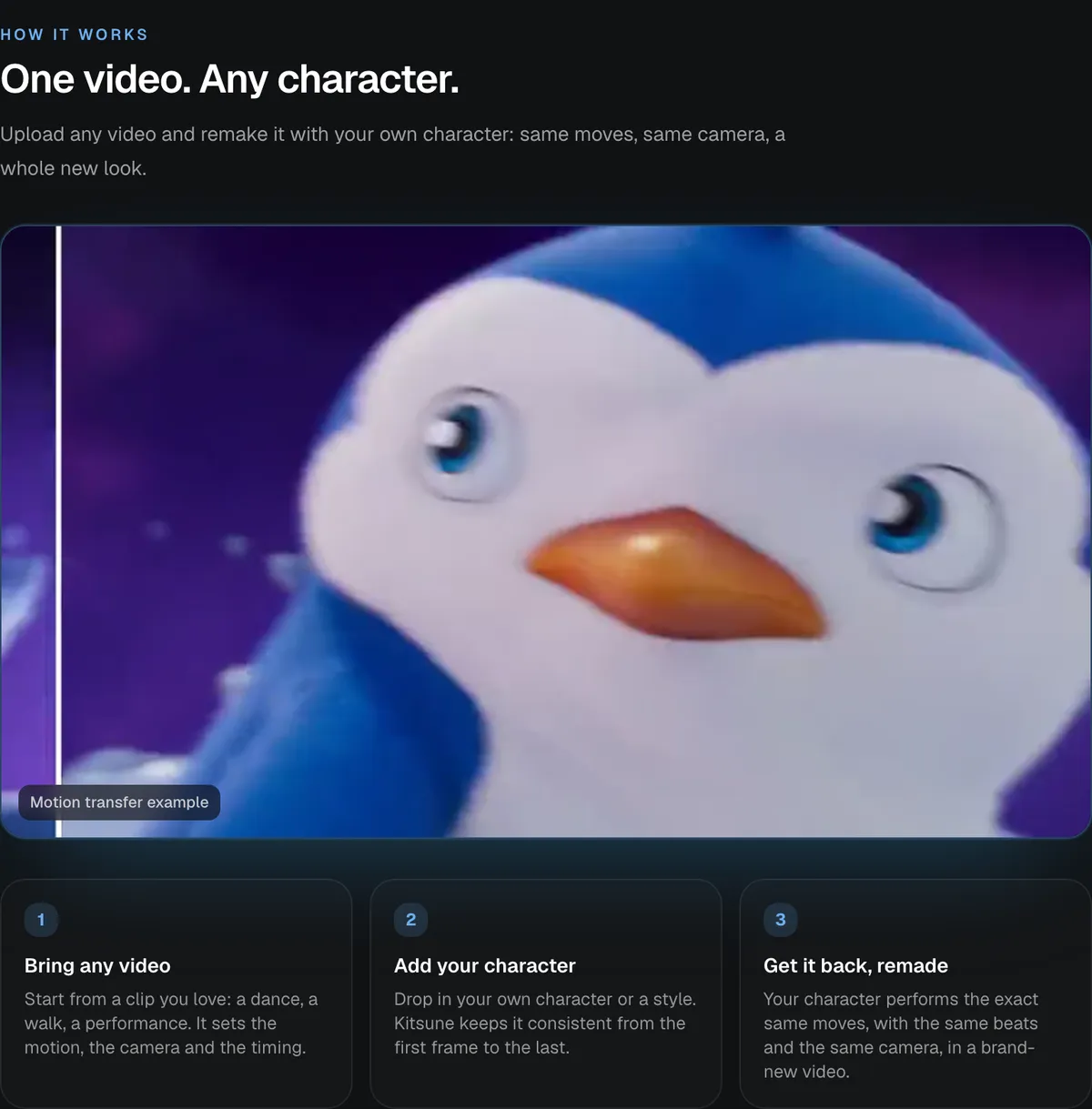
Kitsune is KreatorFlow's motion transfer and object swap studio, running on Seedance 2.5. You give it one video and one character, and it gives you back the same performance with your character in it.
Motion transfer: your character copies every move, the camera and the timing of the clip. Object swap: swap one subject in the scene and keep everything else. In the video, object swap is used to put the character into the clip in place of the original subject.
- Motion clip: 4 to 30 seconds, MP4, MOV or WebM, up to 200 MB.
- Character: 1 to 8 images, JPG, PNG or WebP, or one of your saved characters.
- Resolutions: 480p, 720p, 1080p and 4K; 4K on Pro, Max and Business.
- Length: the result is as long as your clip, and the credits follow the clip's length and resolution.
- Sound: your clip's own sound is put back on the result.
- Prompt: optional, for direction such as "keep the deadpan expression".
Step 3: pick a trending format, use your own footage
Look at what is trending on Instagram, TikTok and Shorts for ideas: the dance, the walk-in, the reaction, the deadpan stare at the camera. Formats are free to borrow. Other people's videos are not.
For the motion clip, film yourself or a friend doing your own version of the format on your phone, use clips you shot before, or use footage you have licensed. Do not download other creators' videos to run through Kitsune: their footage, and often their music, belongs to them.
- Film it vertically, in one take, with the whole body in frame if the moves matter.
- Keep it between 4 and 30 seconds; shorter clips cost less and are easier to get right.
- Use music you have the rights to, or add licensed sound from the platform when you post.
- One performer in the clip makes it clear who your character replaces.
Questions other Jean-Phil guides skip
What the explainers and tutorials leave out: how the account says the videos are made, the platform rules for AI characters, and what a daily habit costs.
Is Jean-Phil fully AI-generated?
Not entirely, by his creator's own account. The anonymous creator told the Belgian public broadcaster VRT that AI is an essential part of the videos but that they are not fully generated by AI, with a lot of human creative work involved. The character himself does not exist, and the creator has not been named.
Source: VRT NWS (in Dutch)
Do I have to label my AI character's videos as AI?
When they look real, yes. YouTube: "We require creators to disclose AI-generated or altered content that seems realistic." TikTok's Community Guidelines: "we require creators to label AI-generated or significantly edited content that shows realistic-looking scenes or people". A phone-camera character like this one counts as realistic, so switch on each platform's AI label when you post.
Source: YouTube Help: disclosing altered or synthetic content
Can an AI character make money on YouTube?
It can, if the channel is original. YouTube's monetization policies list "using AI to visualize a unique character and narrative you invented" as allowed, and "AI-generated content made with generic or unoriginal templates giving the impression of mass production" as not eligible. An original character with its own running joke is the first kind; the same template reposted a hundred times is the second.
How long does one Kitsune clip take?
A few minutes. From Kitsune's render-time estimates, fitted on finished jobs: about 5 minutes for a 5-second clip at 720p and about 6 minutes for 15 seconds. You can leave the page; the clip lands in your history when it is done.
Do I need a powerful computer or GPU?
No. KreatorFlow runs in the browser and every image and clip is rendered in the cloud, so an ordinary laptop is enough. What matters on your side is the motion clip: film it in good light with the whole performer in frame.
What does one clip a day for a month cost?
814 credits (about $38.76 at the regular Creator credit price): the saved character once (4 credits) plus 30 Kitsune clips of 5 seconds at 720p (27 credits each). Longer clips and higher resolutions cost more, and the Generate button shows the exact credits first.
The full process, step by step
- 1
Decide the signature look
Pick three or four details that make the character instantly recognisable from across a feed: a silhouette, a haircut, an outfit and one expression. Write them down; they go into every shot from now on.
- 2
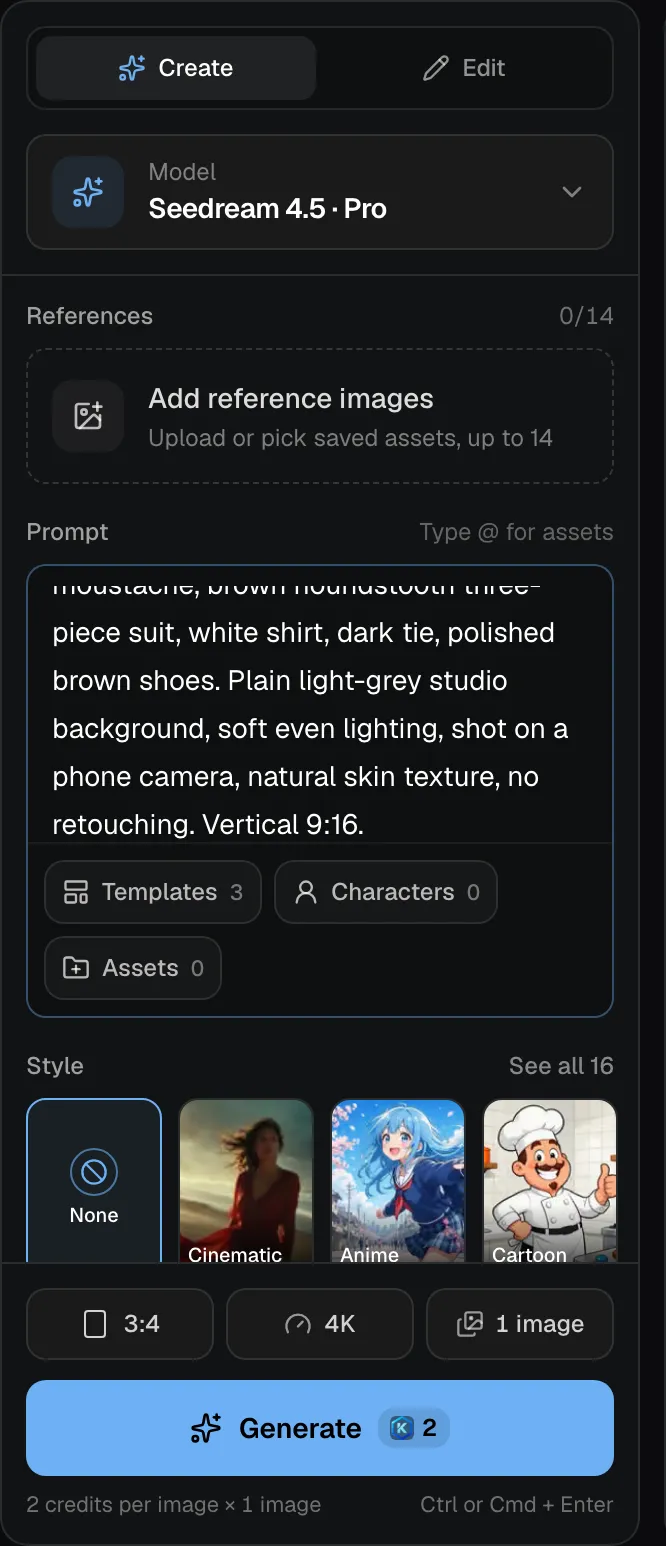
Write the prompt and generate
Describe the full body, the face, the hair and the outfit, then the background, the light and the camera: a plain backdrop, even light, phone camera, natural skin, vertical 9:16. Generate a few versions and keep the best one.
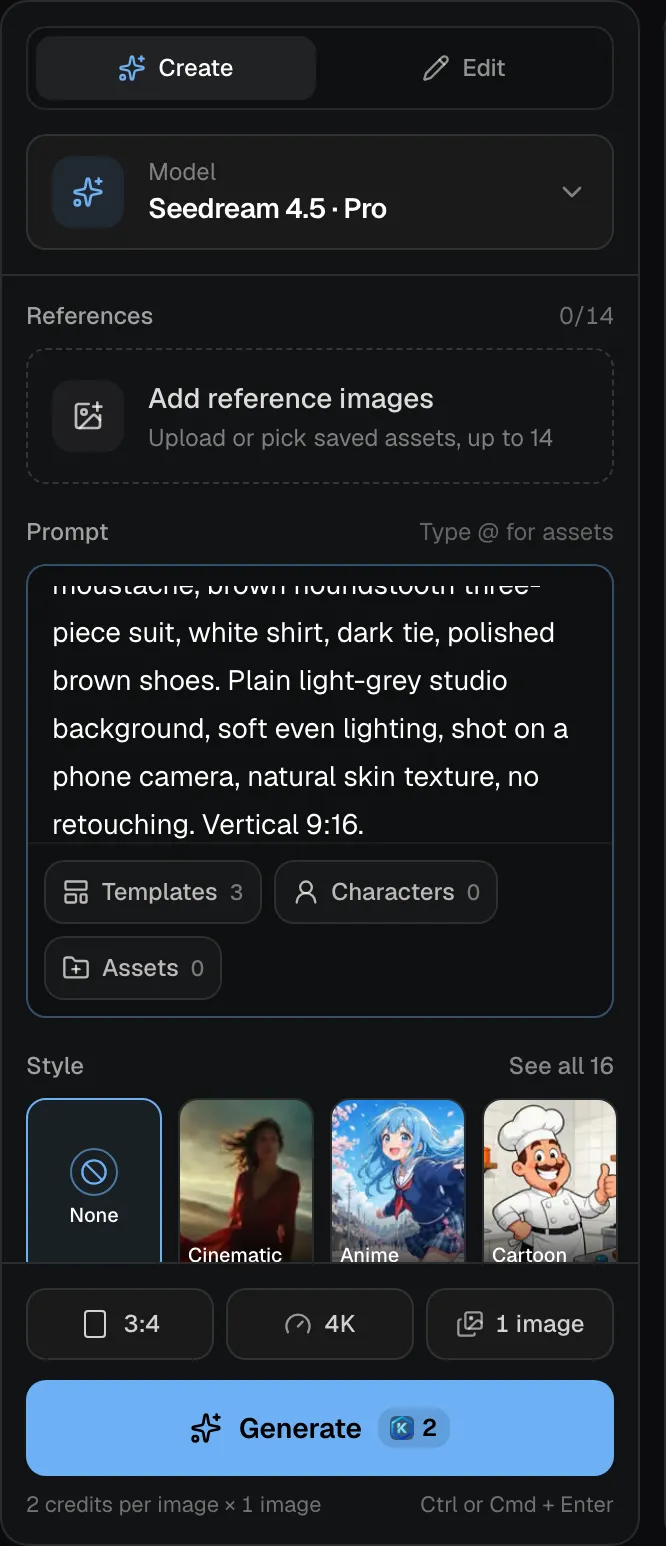
Screenshot of kreatorflow.ai, 2026-10-25 - 3
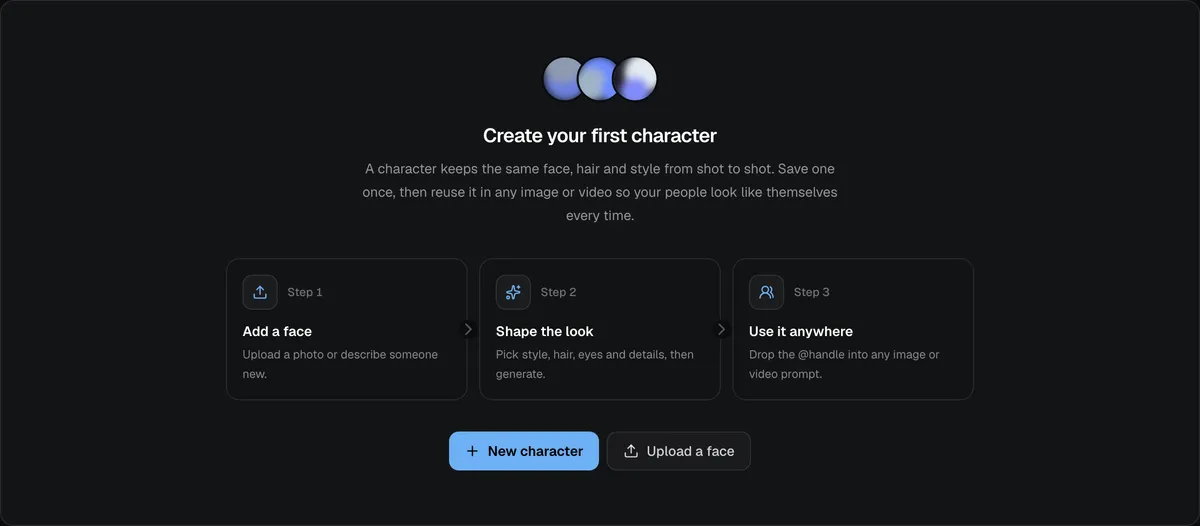
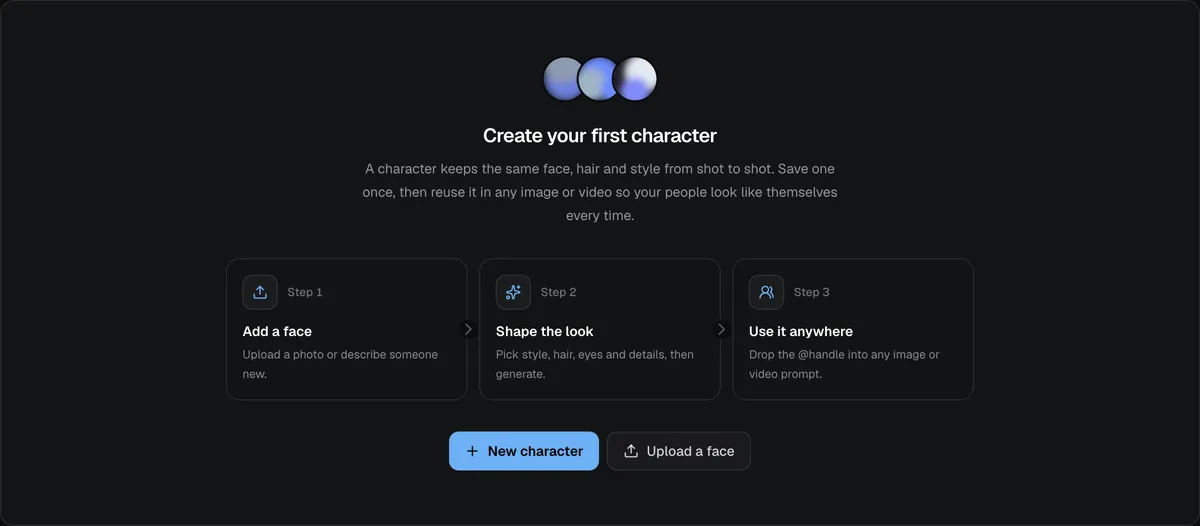
Save it as a character
Save the result in Characters so it gets its own @handle and can be reused everywhere. A saved character costs 4 credits.
Screenshot of kreatorflow.ai, 2026-10-25 - 4
Film or pick your motion clip
Choose a trending format as inspiration and film your own take on it, or use a clip you own or have licensed. Kitsune takes clips of 4 to 30 seconds in MP4, MOV or WebM, up to 200 MB.
- 5
Open Kitsune and add both inputs
Upload the clip, then add your character (pick it from your saved characters, or upload the image). Use motion transfer to keep the moves, camera and timing, or object swap to replace one subject and keep the rest of the shot.
Screenshot of kreatorflow.ai, 2026-10-25 - 6
Pick the resolution and generate
Kitsune renders 480p, 720p, 1080p and 4K; 4K comes with Pro, Max and Business. The Generate button shows the exact credits first: 27 credits for 5 seconds at 720p.
- 7
Post it, and keep the look
Post with the same look every time, label it as AI-generated where the platform asks, and keep making new clips with the same saved character so the audience learns to recognise it.
What it costs
Credits from the studio's own credit code. Dollar values are the regular price of those credits on the Creator plan (its monthly price over its monthly credits). Kitsune and Seedance clips at 720p.
| What you make | Credits | Regular value (Creator) |
|---|---|---|
| One character image (Seedream 4.5, image studio) | 2 | $0.10 |
| Saved character (Seedream 4.5 plus character fee) | 4 | $0.19 |
| Kitsune clip, 5 s, 720p | 27 | $1.29 |
| Kitsune clip, 10 s, 720p | 54 | $2.57 |
| Kitsune clip, 15 s, 720p | 80 | $3.81 |
| Seedance 2.0 clip, 5 s, 720p | 15 | $0.71 |
| Seedance 2.5 clip, 5 s, 720p | 24 | $1.14 |
The Generate button always shows the exact credits before anything is charged. New accounts get 25 starter credits for images and video, enough for the character image.
Kitsune price per second
Kitsune motion transfer at 720p and above: credits per 15-second clip, price per second on each plan (monthly and annual), Genjutsu's own published price where every plan costs less, and clips per plan.
| Model · resolution | Credits | Per second | USD per second (monthly) | USD per second (annual) | Genjutsu (published) | Creator · 525 credits/mo | Pro · 1,050 credits/mo | Max · 2,500 credits/mo | Business (2 seats) · 4,500 credits/mo |
|---|---|---|---|---|---|---|---|---|---|
| Kitsune · 720p | 80/15s | 5.3/s | $0.211–0.257/s | $0.176–0.214/s | ≈ $0.347/s | 6 | 13 | 31 | 56 |
| Kitsune · 1080p | 180/15s | 12/s | $0.475–0.579/s | $0.396–0.482/s | – | 2 | 5 | 13 | 25 |
Kitsune, 720p and above, on 15-second clips (the input clip's seconds are billed too). Plan columns: 15-second clips a month on the plan's full monthly credits. USD per second: each plan's price over its full monthly credits; monthly is the regular monthly price, annual is the yearly price divided by 12. Genjutsu: its own published approximate price for a 15-second clip, divided by 15, shown only where every KreatorFlow plan costs less.
Frequently asked questions
Is Jean-Phil a real person?
No. According to the video, Jean-Phil is an AI-generated character: he does not exist. KreatorFlow did not create him and has no connection with the account; this guide shows how to build your own character in the same style.
Can I copy Jean-Phil?
No. Build your own original character. Copying another creator's character, or using a real person's face without permission, can infringe their rights and breaks the acceptable use policy. Borrow the ingredients instead: a signature look, a deadpan face, phone-camera realism and the same outfit every time.
Which AI models does this use?
The character image is made with Seedream 4.5, the motion transfer and object swap run in Kitsune on Seedance 2.5, and original clips of your character can be made with Seedance 2.0 or Seedance 2.5 in the video studio. Built on BytePlus, a ByteDance company.
How much does it cost?
A saved character costs 4 credits (about $0.19). A Kitsune clip at 720p costs 27 credits (about $1.29) for 5 seconds and 80 credits (about $3.81) for 15 seconds. Dollar values are the regular price on the Creator plan.
Do I need a paid plan?
New accounts get 25 starter credits for images and video, enough for the character image. Kitsune needs a plan: Creator and up.
Can I post the videos on Instagram and TikTok?
Yes. Under our terms, the images and videos you generate are yours to the extent the law allows, so you can post them and use them commercially. You are responsible for the rights to everything you put in: your character, your motion clip and any music. Label realistic AI content where the platform asks.
How do I keep the character consistent?
Save it as a KreatorFlow character and reuse that same reference every time, with its @handle in the image and video studios or as the character in Kitsune. Keep the outfit, hair and expression identical in every clip, and add a few angles of the same character when one view is not enough.