

Try this in the studio
Step by step
- 1
Decide what must stay exact
Before you upload anything, write down what the result has to match: a face, a product, a logo, a camera move, a song. Only those things need a reference. Everything else can come from the prompt, which keeps the setup simple and the cost low.
- 2
Images for the look
Upload up to 9 images: the face, the product, the outfit or the style. They have the most say in how the result looks, so use clean, well lit pictures where the subject fills most of the frame.
- 3
Clips for the motion
Add up to 3 clips when you want to copy a camera move or an action. Trim each clip to the part you need before you upload it, and say in the prompt what to take from it.
- 4
Audio for rhythm and voice
Add up to 3 audio files to set the rhythm, the music or a voice. Cut the file to the moment you want the video to follow.
- 5
Name each reference in the prompt
Say what each one is for: "the face from the first image", "the camera move from the clip", so the model doesn't mix them up. Refer to them in the order you uploaded them.
- 6
Check the cost
Without clips, 5 seconds cost 15 credits at 720p and 30 at 1080p. With one 5-second clip it's 19 at 720p and 32 at 1080p. The studio shows the cost before you generate.
Example setups
Product with logo
Images: the product photo and the logo. Prompt: the product from the first image turns on a plinth, the logo from the second appears at the end.
Copy a camera move
Clip: a drone shot. Image: your landscape. Prompt: the landscape from the image, with the same camera move as the clip.
On the beat
Audio: your track. Image: the dancer. Prompt: the dancer from the image moves to the beat of the audio, medium shot.
Seedance price per second on KreatorFlow
Seedance 2.0 and 2.5 at 720p and above: price per second on each plan (monthly and annual), credits per 5-second clip, and clips per plan.
| Model · resolution | Credits | Per second | USD per second (monthly) | USD per second (annual) | Creator · 525 credits/mo | Pro · 1,050 credits/mo | Max · 2,500 credits/mo | Business (2 seats) · 4,500 credits/mo |
|---|---|---|---|---|---|---|---|---|
| Seedance 2.0 · 720p | 15/5s | 3/s | $0.119–0.145/s | $0.099–0.121/s | 35 | 70 | 166 | 300 |
| Seedance 2.0 · 1080p | 30/5s | 6/s | $0.238–0.289/s | $0.198–0.241/s | 17 | 35 | 83 | 150 |
| Seedance 2.0 · 4K | 70/5s | 14/s | $0.554–0.675/s | $0.462–0.563/s | Pro and up | 15 | 35 | 64 |
| Seedance 2.5 · 720p | 24/5s | 4.8/s | $0.190–0.231/s | $0.158–0.193/s | 21 | 43 | 104 | 187 |
| Seedance 2.5 · 1080p | 50/5s | 10/s | $0.396–0.482/s | $0.330–0.402/s | 10 | 21 | 50 | 90 |
| Seedance 2.5 · 4K | 120/5s | 24/s | $0.950–1.157/s | $0.792–0.964/s | Pro and up | 8 | 20 | 37 |
Seedance 2.0 and 2.5, 720p and above. Plan columns: 5-second clips a month on the plan's full monthly credits. Longer clips cost the same per second, so a 10-second clip uses twice the credits. Generated audio is included. USD per second: each plan's price over its full monthly credits, lowest to highest plan; monthly is the regular monthly price, annual is the yearly price divided by 12.
What each reference type controls
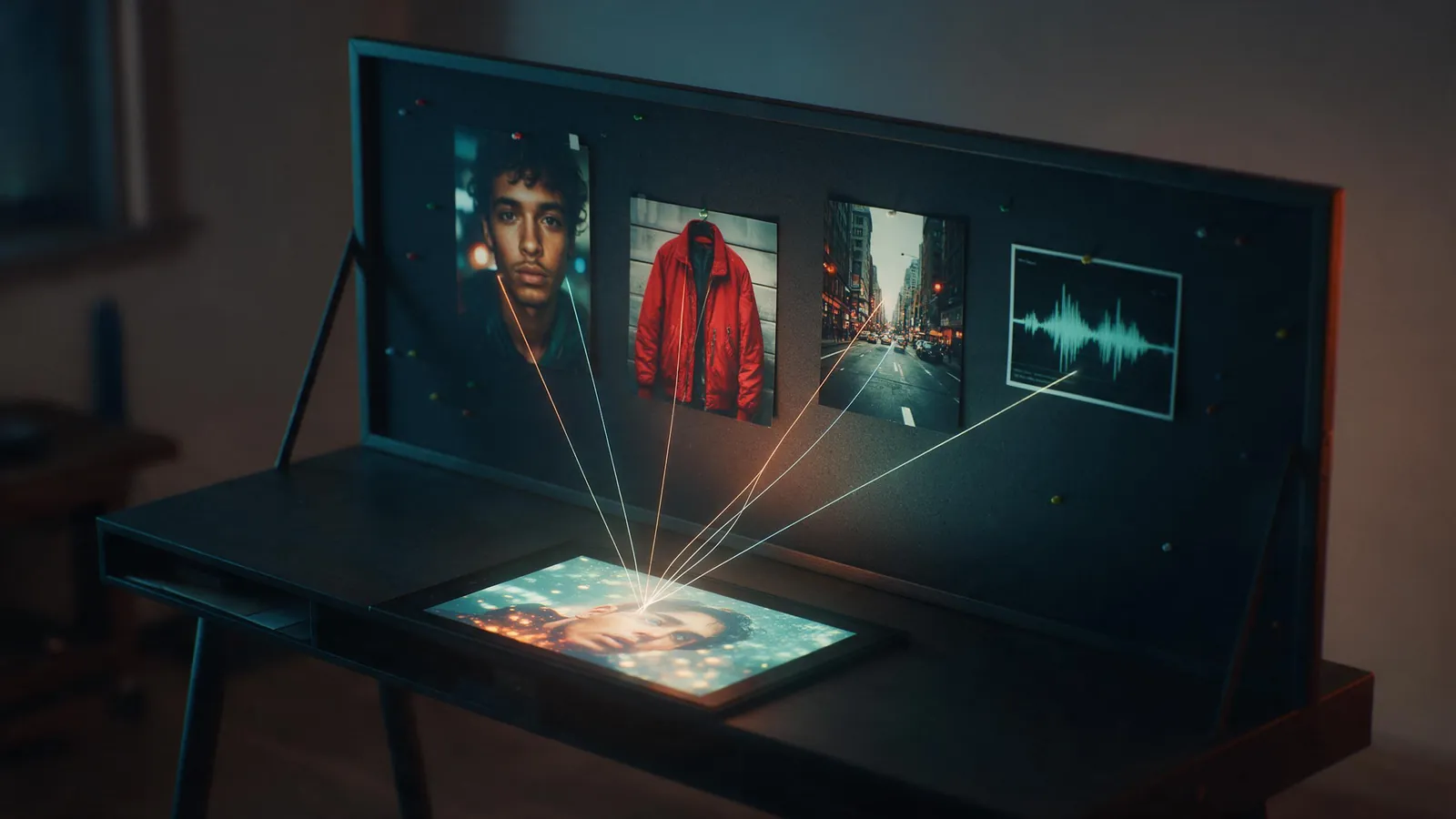
A reference is a file that tells the model what something should look, move or sound like, so you don't have to describe it in words. The three types do different jobs, and mixing them up is the most common reason a result looks wrong.
Image references (up to 9) carry appearance: faces, products, clothing, packaging, a location or a visual style. Use one image per thing that must stay recognisable. Several angles of the same face or product help the model keep it consistent when the camera moves.
Video references (up to 3) carry movement: how the camera travels, how a person dances or walks, the pace of an action. They are not the place to set the look. If the reference clip shows a different person or setting, say in the prompt that only the motion should be copied.
Audio references (up to 3) carry timing and sound: a beat to cut movement to, a piece of music, or a voice. They work best when the file is already trimmed to the length of the clip you want.
Image references: getting faces and products right
The model copies what it sees, including mistakes. A blurry photo gives a soft face, a cluttered background can leak into the scene, and a product shot at an odd angle makes the label hard to keep. Spend a minute choosing the pictures and you save several generations.
Character and product in one shot
The woman from the first image holds the bottle from the second image at chest height, turns it slowly so the label faces the camera and smiles. Bright kitchen in the morning, soft window light, slow dolly in, medium close-up, natural colours.
- Use sharp, evenly lit photos where the subject fills most of the frame.
- For a character, add a front view and a three quarter view of the same face.
- For a product, add the front with the label readable and one side view.
- Keep one look per character: two different hairstyles in two images will blend.
- Use a separate image for a logo or a style reference, and say what it is for.
Video references: copying a camera move or an action
A reference clip is the quickest way to get a camera move that is hard to describe: a drone sweep, a whip pan, a one take walk through a room. The model follows the path and pace of the clip and applies it to the subject and setting you give it with images and the prompt.
Because the clip's seconds are billed on top of the output's, trim it to the exact move before uploading. A long clip with only two useful seconds costs more and gives the model more motion to copy that you don't want.
Same camera move, new scene
Use only the camera move from the clip: a fast low flight forward that rises over the ridge at the end. The scene is the mountain lake from the first image at sunrise, mist on the water, no people. Cinematic, wide lens.
Audio references: rhythm, music and voice
An audio reference gives the video a timing to follow. For dance and product clips, a track with a clear beat makes the movement land on the hits. For a talking shot, a voice file sets what is said and how.
Tell the model what the audio is for. "Moves to the beat of the audio" and "says the line from the audio" ask for different things, and the prompt is where you make that clear.
Dance to your track
The dancer from the first image dances to the beat of the audio on a rooftop at night, city lights behind her. Every step lands on the beat. Medium wide shot, the camera circles her slowly, warm neon colours.
Combining references in one generation
You can use all three types together: images for who and what, a clip for the motion and audio for the timing. The limits per generation are 9 images, 3 clips and 3 audio files, but more is not better. Each extra reference is one more thing the model has to balance, so add a reference only when it fixes something the prompt can't.
A good order to build a shot in: start with the images and a prompt, generate, and only add a clip or audio if the motion or timing is off. That way you know which reference changed what.
Mistakes to avoid
These are the usual reasons a reference setup doesn't give the result you expected.
- References that contradict each other (two different faces for the same character).
- Uploading long clips when you only need a few seconds: the clip's seconds are billed too.
- Not saying in the prompt what to take from each reference.
- Using a reference clip to set the look: it is for motion, use images for appearance.
- Low resolution or heavily filtered photos: the model copies the blur and the filter.
- A prompt that describes something different from the reference, such as a red jacket when the image shows a blue one.
Troubleshooting
The face drifts during the clip: add a second angle of the same face and slow the camera move down in the prompt.
The product label is unreadable: use a front photo where the label is sharp, and ask for the label to face the camera at the end of the shot.
The motion from the clip is ignored: say "use the camera move from the clip" in plain words, and trim the clip so the move fills it.
The scene from the reference clip leaks into the result: say that only the motion should be copied, and describe the new setting in detail.
Frequently asked questions
How many references does Seedance 2.0 take?
Up to 9 images, 3 clips and 3 audio files in one generation.
Do video references cost more?
Yes: you're billed for the clip's seconds plus the output's. A 5-second video with one 5-second clip costs 19 credits at 720p instead of 15.
Do image references cost credits?
They add nothing: the price depends on the length, the resolution and any video clips.
How do I keep the same character across several Seedance clips?
Use the same reference images every time, ideally a front and a three quarter view of the face, and describe the outfit the same way in each prompt. Changing the pictures between clips is what makes a character drift.
Can I copy a camera move from another video?
Yes. Upload the clip as a video reference (up to 3 per generation), trim it to the move, and say in the prompt that only the camera move should be copied. Images and the prompt then set what the scene looks like.
Can Seedance 2.0 sync a video to music?
Add the track as an audio reference (up to 3 per generation) and ask for the movement to follow the beat. Trim the audio to the part you want first.
What's the difference between image to video and image references?
Both start from your pictures. In practice, references are about keeping things exact (a face, a product, a logo) while the prompt describes a new shot around them, and you can combine them with clips and audio in the same generation.